
CalendarView显示时间很长
我正在CalendarView上开发一个应用程序。我必须向calendarView展示一个小的线性布局。
当显示一整页包含calendarView的小线性布局时会出现问题.->这需要10秒的时间,这是很长的时间.
布局上没有别的东西。
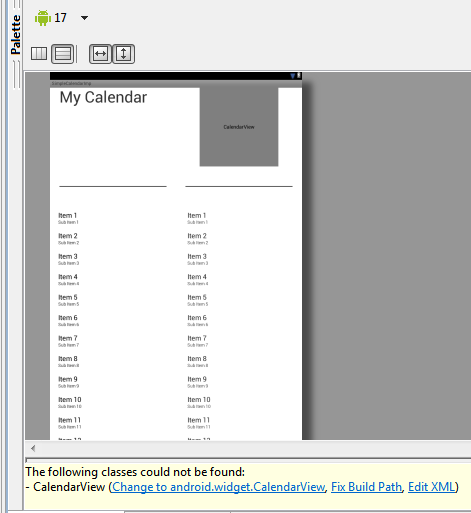
这是我的xml和快照..。
任何帮助都将是强大的学徒.
<?xml version="1.0" encoding="utf-8"?>
<LinearLayout xmlns:android="http://schemas.android.com/apk/res/android"
    android:layout_width="match_parent"
    android:layout_height="match_parent"
    android:orientation="vertical" >

    <LinearLayout
        android:layout_width="fill_parent"
        android:layout_height="fill_parent" >

        <LinearLayout
            android:layout_width="0dp"
            android:layout_height="fill_parent"
            android:layout_weight="1"
            android:orientation="vertical" >

            <RelativeLayout
                android:layout_width="fill_parent"
                android:layout_height="0dp"
                android:layout_weight="30"
                android:paddingLeft="30dp" >

                <TextView
                    android:id="@+id/txtDate"
                    android:layout_width="wrap_content"
                    android:layout_height="wrap_content"
                    android:text="My Calendar"
                    android:textSize="50sp" />

                <View
                    android:layout_width="fill_parent"
                    android:layout_height="2dp"
                    android:layout_alignParentBottom="true"
                    android:layout_marginBottom="40dp"
                    android:layout_marginRight="30dp"
                    android:background="@android:color/black" />
            </RelativeLayout>

            <RelativeLayout
                android:layout_width="fill_parent"
                android:layout_height="0dp"
                android:layout_weight="70"
                android:paddingBottom="30dp"
                android:paddingLeft="20dp"
                android:paddingRight="20dp"
                android:paddingTop="30dp" >

                <LinearLayout
                    android:layout_width="fill_parent"
                    android:layout_height="fill_parent"
                    android:gravity="center"
                    android:orientation="vertical" >

                    <ListView
                        android:id="@+id/list_task"
                        android:layout_width="fill_parent"
                        android:layout_height="wrap_content" >
                    </ListView>
                </LinearLayout>
            </RelativeLayout>
        </LinearLayout>

        <LinearLayout
            android:layout_width="0dp"
            android:layout_height="fill_parent"
            android:layout_weight="1"
            android:orientation="vertical" >

            <RelativeLayout
                android:layout_width="fill_parent"
                android:layout_height="0dp"
                android:layout_weight="30" >

                <CalendarView
                    android:id="@+id/cal_small"
                    android:layout_width="250dp"
                    android:layout_height="250dp"
                    android:layout_centerHorizontal="true"
                    android:background="@android:color/darker_gray"
                    android:showWeekNumber="false"
                    android:animateLayoutChanges="false"
                    android:clipChildren="false"
                    android:drawingCacheQuality="low"
                    android:soundEffectsEnabled="false"
                    android:hapticFeedbackEnabled="false"
                     />

                <View
                    android:layout_width="fill_parent"
                    android:layout_height="2dp"
                    android:layout_alignParentBottom="true"
                    android:layout_marginBottom="40dp"
                    android:layout_marginLeft="30dp"
                    android:layout_marginRight="30dp"
                    android:background="@android:color/black" />
            </RelativeLayout>

            <RelativeLayout
                android:layout_width="fill_parent"
                android:layout_height="0dp"
                android:layout_weight="70" >

                <LinearLayout
                    android:layout_width="fill_parent"
                    android:layout_height="fill_parent"
                    android:layout_marginBottom="30dp"
                    android:layout_marginRight="10dp"
                    android:layout_marginTop="30dp"
                    android:orientation="vertical" >

                    <LinearLayout
                        android:layout_width="fill_parent"
                        android:layout_height="0dp"
                        android:layout_weight="8" >

                        <ListView
                            android:id="@+id/list1"
                            android:layout_width="wrap_content"
                            android:layout_height="wrap_content"
                            android:paddingLeft="30dp" >
                        </ListView>
                    </LinearLayout>

                    <ListView
                        android:layout_width="wrap_content"
                        android:layout_height="wrap_content" >
                    </ListView>
                </LinearLayout>
            </RelativeLayout>
        </LinearLayout>
    </LinearLayout>

</LinearLayout>
回答 4
Stack Overflow用户
发布于 2013-09-13 09:55:57
这似乎很简单,但意外地,我测试了这个,而且它运行良好。我希望这也能帮你..。
首先,创建单独的xml文件,其中只包含CalendarView。名为“cal_view.xml”
<?xml version="1.0" encoding="utf-8"?>
<LinearLayout xmlns:android="http://schemas.android.com/apk/res/android"
    android:layout_width="match_parent"
    android:layout_height="match_parent"
    android:orientation="vertical" >

    <android.widget.CalendarView
        android:layout_width="200dp"
        android:layout_height="200dp" />

</LinearLayout>
然后将这个xml文件包含到您的主xml文件中,如下所示。而不是CalanderView,而是包含xml文件。
 <include
     android:id="@+id/subCategory"
layout="@layout/cal_view" />Stack Overflow用户
发布于 2013-09-13 10:36:53
当你提到你的问题时,
发行
您的资源xml文件(布局)不是以最佳方式进行的。作为安卓的指导原则,ViewGroup不使用静态高度和重量。请阅读http://developer.android.com/training/improving-layouts/optimizing-layout.html
解决方案:
在我看来,您应该为创建Calendar view.In创建自己的类,应用所有属性和属性。
我正在为日历视图展示一个演示应用程序。http://www.androidviews.net/2013/01/ics-calendarview/在这些应用程序中有一个更好的方法来使用日历视图。另外,我还提到了另一个自定义日历视图的Git
- https://github.com/dwivedi/android-times-square
- https://github.com/dwivedi/ExtendedCalendarView
- https://github.com/SimonVT/android-calendarview
在上面的应用程序中,展示了使用CalendarView的正确方法
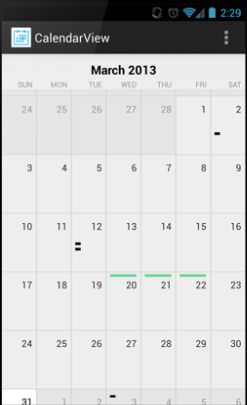
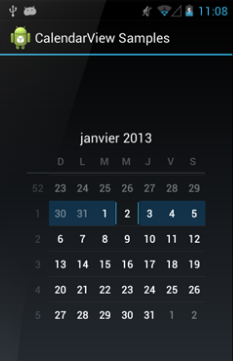
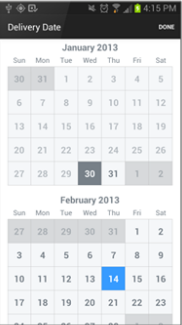
这里我展示了Calenderview应用程序的屏幕截图。
如果有任何问题,请让我知道,我会为同样的样例。
Stack Overflow用户
发布于 2016-03-08 15:03:33
上面的答案对我都没有用,我只是把宽度和高度更改为"fill_parent“,现在一切对我来说都很好。
<CalendarView
     android:layout_width="fill_parent"
android:layout_height="fill_parent"/>https://stackoverflow.com/questions/18721298
复制相似问题
腾讯云开发者

Copyright © 2013 - 2026 Tencent Cloud. All Rights Reserved. 腾讯云 版权所有
深圳市腾讯计算机系统有限公司 ICP备案/许可证号:粤B2-20090059  粤公网安备44030502008569号
腾讯云计算(北京)有限责任公司 京ICP证150476号 | 京ICP备11018762号